
Editor tour
A map of the editor window: what each part is for and where to read more. The numbers on each screenshot match the list below it. (The screenshots are taken by the editor’s own test drives, so they show this version.)
The window
Section titled “The window”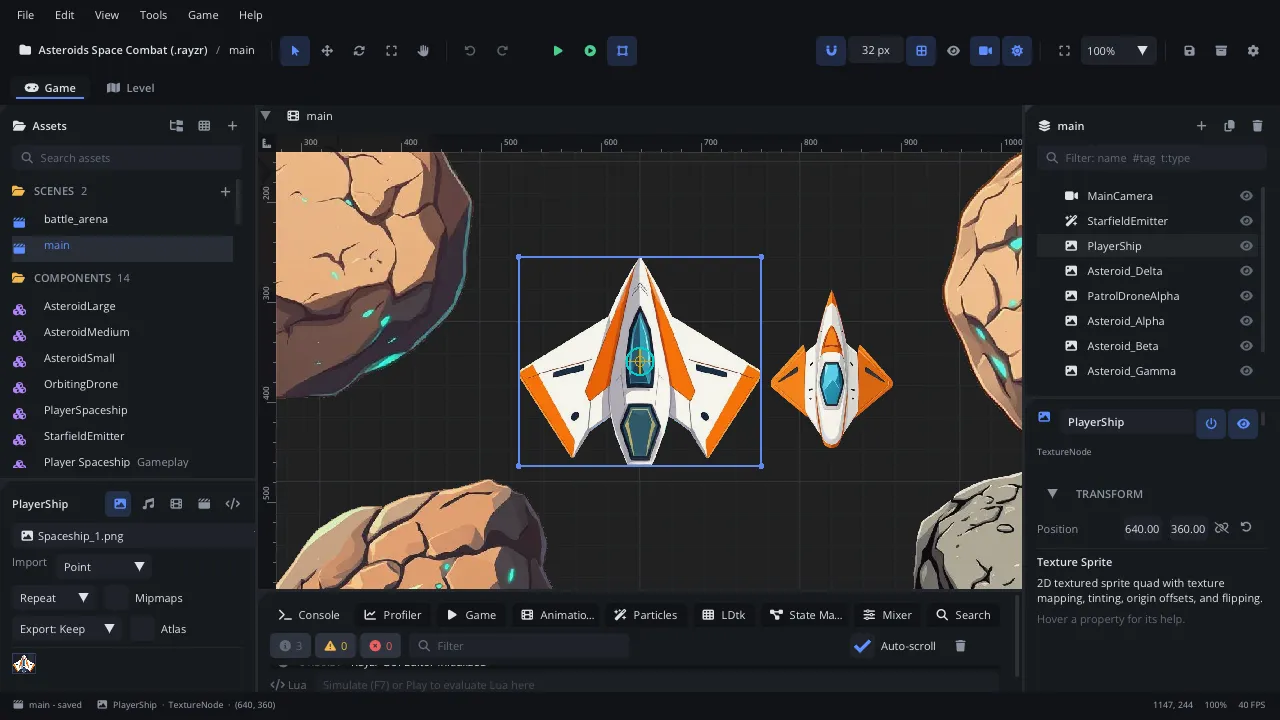
- Toolbar: tools, Play / Pause / Stop, grid and snapping, save, export, settings
- Scene: the node tree of the open scene (drag to re-parent, right-click for more)
- Viewport: the scene; select, move, rotate and scale nodes
- Inspector: the selected node's properties, script and signals
- Assets: the project's scenes, scripts, textures, sounds and components
- Bottom panel: Console, Animation, Particles, Mixer, Profiler and more
- Status bar: project, scene, selection, background tasks
- Preview: the selected asset (import settings, sounds, animations)
- Game / Level: the scene editor or the LDtk level editor (Cmd+Shift+1 / 2)
Panels dock wherever you drag them. View > Workspaces switches between layouts - Default, Level Design (a big viewport), Scripting (the Code tab in the middle), Animation (a tall timeline) and any you save; pick Default to get the standard layout back. The editor manual describes every panel in depth.
The toolbar
Section titled “The toolbar”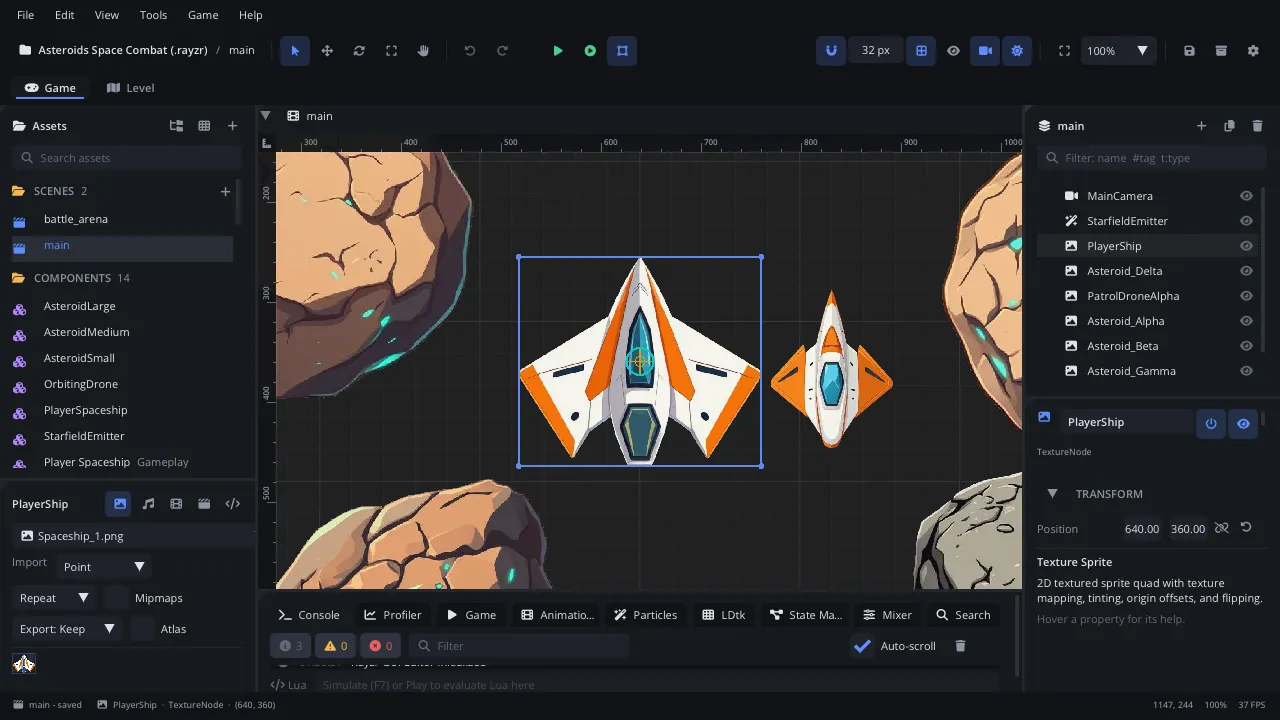
- Select tool (Q)
- Move (W), Rotate (E) and Scale (R) tools
- Play the project (F5)
- Play the current scene (F6)
- Grid and snapping
- Save the scene (Cmd+S)
- Export a game
- Project settings
| Shortcut | Action |
|---|---|
| Q / W / E / R / T | Select, move, rotate, scale, pan |
| F5 / F6 | Play the project / play the current scene |
| F7 | Simulate the scene inside the editor |
| Shift+F5 | Stop |
| Cmd+S | Save the scene (Ctrl on Windows and Linux) |
| Cmd+Shift+P or F1 | The command palette: every action, searchable |
Help > Keyboard Shortcuts (Cmd+Shift+K) lists every shortcut, and Settings lets you change them.
Selecting and editing nodes
Section titled “Selecting and editing nodes”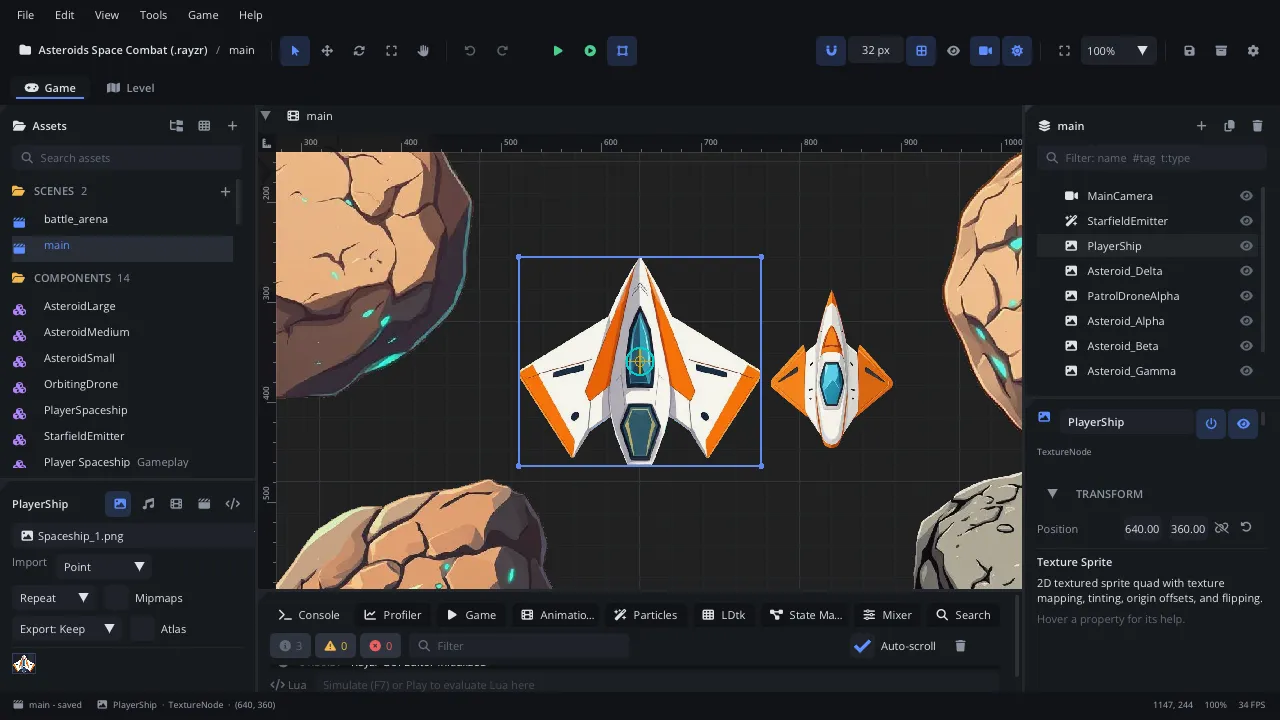
- The selected node in the viewport: drag to move, handles to scale
- The same node in the scene tree
- The Inspector: its name, enabled / visible toggles, type and properties
- The selection and the cursor's world position
A scene is a tree of nodes. Selecting one - in the viewport or the Scene panel - shows it in the Inspector:
- Transform: position, rotation, scale and origin, plus draw order (layer, Z index, Y-sort).
- The node’s own properties: a sprite’s texture, a camera’s follow mode, a body’s collision shapes… hover any of them for its help.
- Script: attach a Lua script; its declared properties appear here.
- Signals: connect the node’s events (a timer’s
timeout, an area’sbody_entered) to script methods.
Every property is documented in the node reference.
Adding nodes
Section titled “Adding nodes”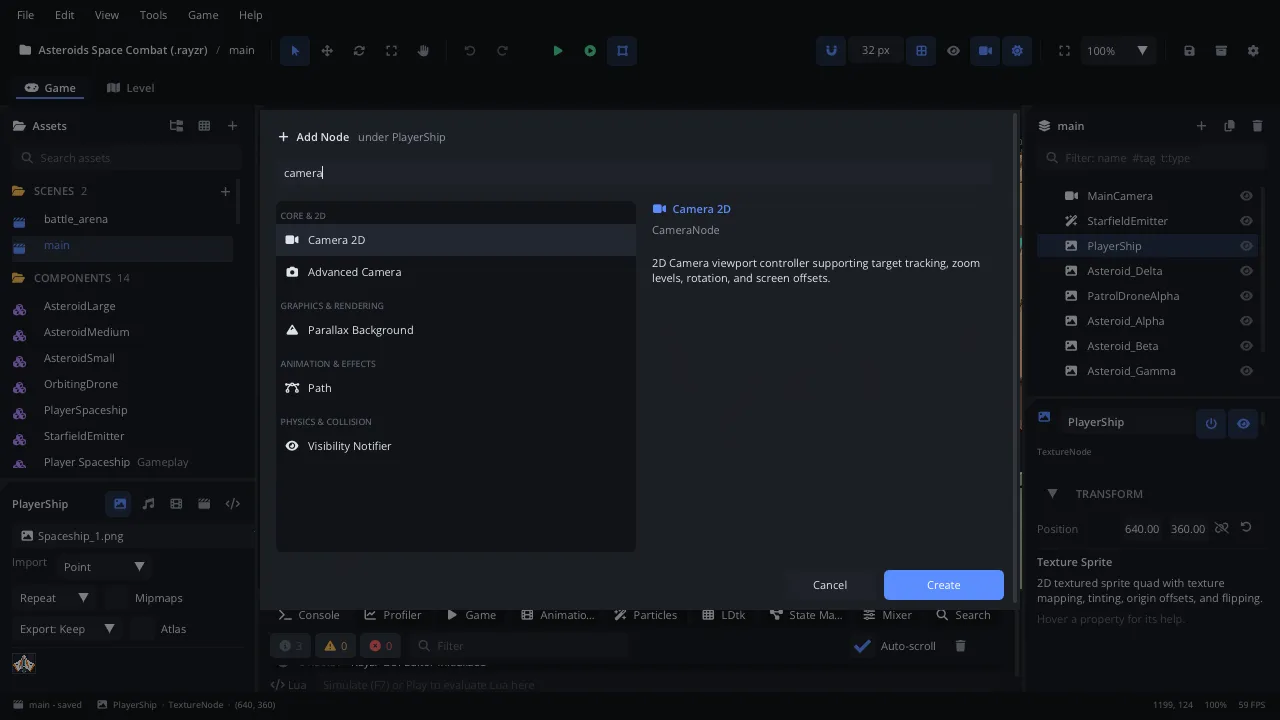
Cmd+A (or + in the Scene panel) opens Add Node: type to search, pick a node, Create. It is added under the selected node.
Tabs and modes
Section titled “Tabs and modes”- Game / Level (top left) switch between the scene editor and the level editor for LDtk projects.
- Scene tabs above the viewport hold each open scene; each keeps its own camera, selection and undo history.
- The Code tab edits Lua scripts with completion, hover docs, go to definition, rename and a debugger (Code tab).
- The bottom panel has the Console, Animation timeline, Particles, State machine graph, Mixer, Profiler, project Search and the live Game tree while the game runs.